How to Convert IPYNB to PDF (Without Errors): The Complete Guide
Last updated: December 11, 2025
Sharing data analysis results shouldn't be a headache. Whether you need a polished report for stakeholders or a clean document for your portfolio, converting Jupyter Notebooks (.ipynb) to PDF is a daily necessity for data scientists.
However, "simple" conversions often result in cut-off code blocks, missing images, or broken LaTeX formulas. In this guide, we'll cover 4 reliable methods to get the perfect PDF.
#Method 1: Jupyter's Built-in Export (nbconvert)
The most direct way is using Jupyter Notebook or JupyterLab's native export feature. This relies on a tool called `nbconvert` and typically requires a LaTeX installation (like TeX Live or MiKTeX) on your machine.
How to do it:
- Open your notebook in Jupyter.
- Go to File > Download as > PDF via LaTeX (.pdf).
- Wait for the conversion process to complete.
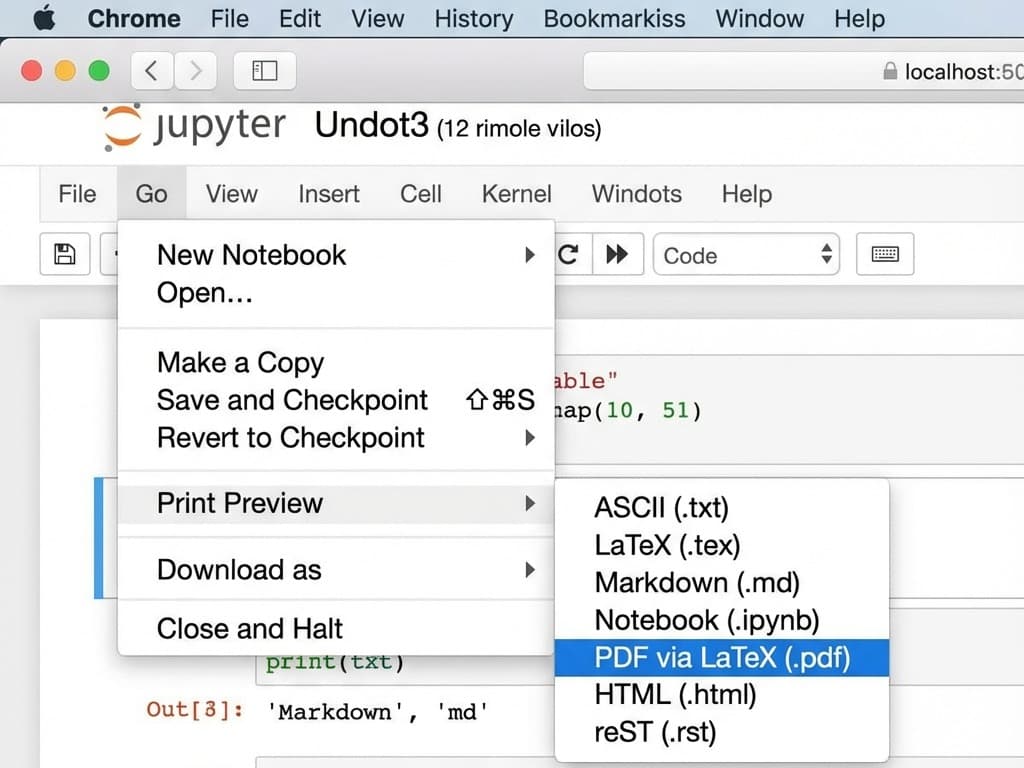
Pros: High-quality typesetting, vector graphics.
Cons: Requires heavy 5GB+ LaTeX installation. Often fails with cryptic "xcrun" or "pandoc" errors if dependencies are missing.
#Method 2: Command Line (CLI)
If the GUI fails, you can try converting directly from the terminal using `nbconvert`. This often gives you more detailed error messages.
How to do it:
- Open your terminal or command prompt.
- Run: `jupyter nbconvert --to pdf notebook.ipynb`
- Check the output for any LaTeX missing package errors.
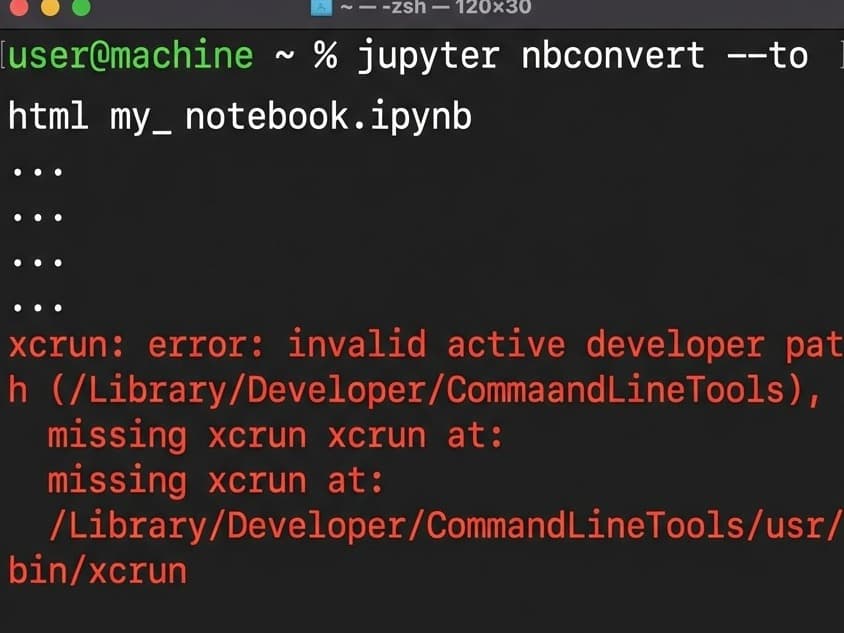
Pros: More control, detailed error logs.
Cons: Requires command line knowledge. Still depends on a fragile local LaTeX environment.
#Method 3: Generic Online Converters
A search for "ipynb to pdf" brings up many generic file conversion sites. While convenient, they are often designed for Word docs or basic text, not code.
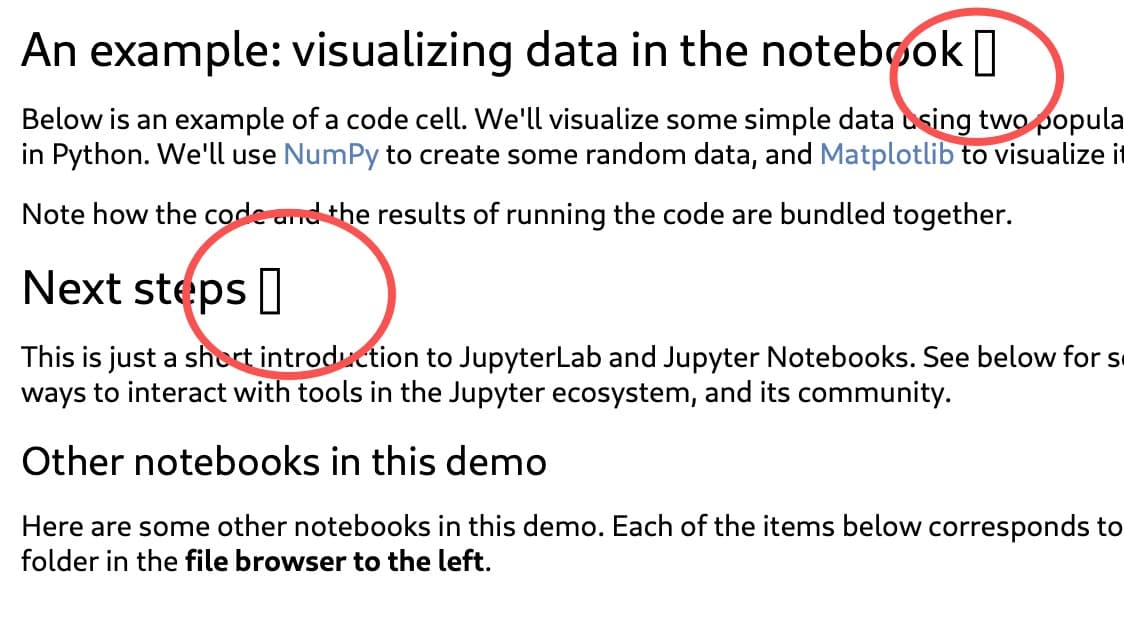
Common Issues:
- Privacy Risks: You are uploading your actual data and code to unknown servers.
- Formatting Failures: MathJax/LaTeX formulas (like $\sum$) often fail to render.
- Chinese Characters: Many default server fonts don't support CJK characters, resulting in "tofu" squares (□□).
#Method 4: Use https://ipynb2pdf.org (Recommended)
For the best balance of privacy and formatting, we built ipynb2pdf. Unlike typical online converters, it runs entirely in your browser which means your files never leave your device. We also solved the common formatting headaches: it automatically wraps code lines so they don't get cut off, preserves your syntax highlighting, and has built-in support for multiple languages including Chinese and Japanese.